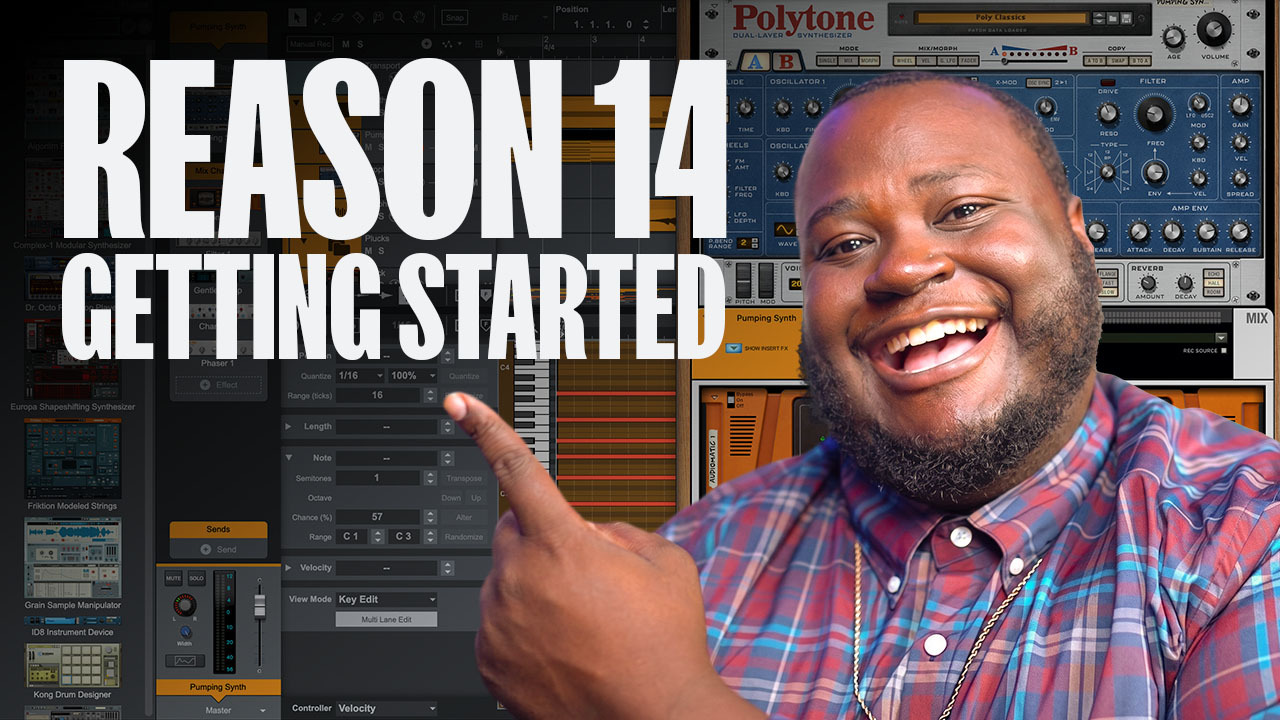
Reason 14 is finally here and it is a powerhouse of workflow improvements paired with the excellent new RV-9 Reverb Station. In Reason 14, everything comes together to make the distance between your initial idea and a finished song shorter than ever before.
In this tutorial, Chris Reed builds a track from scratch while exploring the newest features in the rack, sequencer, and mixer.
Start making music in Reason 14
1. Kickstarting Your Track in the Sequencer
The first step to building any track is laying down a solid foundation. In Reason 14, adding new elements is more intuitive than ever. To get started, you can add an audio track, track folder, or instrument directly from the sequencer by selecting the corresponding option to prepare your project. For a faster start, simply open the browser by pressing F9, find your favorite drum loop, and drag it directly into the sequencer.
When you add an audio file, Reason 14 automatically detects the tempo. If the file does not match your project tempo, Reason will now automatically stretch the clip to fit perfectly. If you prefer to keep the original speed of the sample, you can easily change this by going to the Edit menu and selecting Reset to Unstretched Tempo.
Using the Track Panel
The new Track Panel, located to the left of the sequencer, is a total game-changer. It allows you to manage your track without ever opening the mixer or looking at the rack. From here, you can quickly add and manage your effect chain via Insert Effects or activate pre-connected sends by clicking the gray circle until it turns green. You also have immediate access to vital mixer controls like mute, solo, pan, and width, along with a dedicated volume fader featuring high-resolution metering for every track.
2. Browsing and Composition Tools
Reason’s browser has been refined to help you find the exact sound you need through smarter tagging and faster navigation. When looking for a specific sound, like a soft and organic piano, you can use Reason’s browser tags to narrow down your search instantly. In the project from the video, we used the Low-Five Piano Patch from Mimic to get that perfect lo-fi feel.
Chase Notes
A massive improvement for Reason’s arrangement workflow is the Chase Notes feature, found under Options > Playback and Recording. This ensures that MIDI notes play even if you start playback from the middle of a long chord. This is essential for long-form arrangements and ensures you never have to re-trigger chords just to hear them during the arrangement phase, keeping your creative momentum going.
3. Creating Looped Clips
Managing your arrangement is faster in Reason 14 thanks to updated clip behavior. If you want to repeat a section, you no longer have to manually copy and paste clips across the timeline. To create a looped clip, simply hover over the top right edge of a clip until the loop icon appears, then click and drag the edge to the right to extend the clip for as many bars as you need.
Alternatively, you can select a clip and hit the Loop Clips button at the top of the sequencer. This creates a virtual ghost copy that follows any changes made to the original clip. This makes it perfect for drum patterns or chord progressions where you want a change in the first bar to automatically update throughout the entire song.
4. Visual Velocity Control
One of the most requested features for the sequencer has finally arrived: visual velocity handles. In Reason 14, you no longer need to open a separate edit lane at the bottom of the screen to adjust how hard a note is hit. When you select MIDI notes in the sequencer, you will now see individual velocity handles directly on the notes themselves.
You can simply click and drag these handles up or down to adjust the velocity. If you select multiple notes, you can adjust them all at once, allowing for quick humanization of your drum patterns or melodic lines. This keeps your focus entirely on the notes and the grid, making the editing process much more fluid and visual.
5. Deep Diving into Rack per Track
One of the most significant architectural changes in Reason 14 is the Rack per Track philosophy. By default, the rack now only shows the instrument associated with the track you are currently working on. This keeps your workspace clutter-free and keeps your eyes on the prize. You can stay in Single Column Mode to focus on one instrument at a time, or switch to Multi-Column Mode if you need to see your master section and all other instruments simultaneously.
Routing Drums to Separate Channels
For those who need granular control over their mix, you can route individual drum sounds from devices like the Redrum Drum Computer to separate mix channels. Start by pressing Tab to flip the rack and access the back of the devices. From there, you can route your kick, snare, and hi-hats to their own channels. These new channels will automatically appear in your Track Panel, allowing you to add specific insert effects to individual drum sounds without ever leaving the sequencer.
6. Organization and Advanced Routing
As your project grows from a few tracks to dozens, organization becomes your best friend. Reason 14 introduces Track Folders to help manage large sessions and keep your arrangement tidy. To group tracks, highlight multiple tracks with Shift and Click, then use Ctrl + Shift + T to move them into a new folder. You can even nest folders inside each other, such as putting Melody and Drum folders into a master All Tracks folder. For maximum clarity, hold Alt while clicking a folder to collapse everything, giving you a simplified view of your entire song as a single package of clips.
Sequencer Bus Channels
You no longer need to jump into the Mixer to create buses. You can now create bus channels, rename them, and assign track outputs directly within the sequencer. This gives you full control over volume, pan, and EQ for groups of tracks right where you arrange them, making the mixing process feel like a natural extension of the composition phase.
Conclusion: A Faster Way to Create
Reason 14 is all about removing the friction between your brain and the speakers. By bringing the mixer and rack controls directly into the sequencer via the Track Panel and organizing your workflow with Track Folders, you can stay focused on the music. These updates prove that Reason remains the most creative and flexible DAW on the planet, allowing you to build, route, and mix your tracks with unprecedented speed.
FAQ
How do I export my song in Reason 14?
To export, navigate to File > Export Song as Audio File. You can choose between AIFF, WAV, or MP3 formats depending on your needs.
Can I add effects to my Master Section in the sequencer?
Yes. Reason 14 includes a dedicated track for your Master Section in the sequencer. You can use the browser to drag and drop mastering patches or individual devices directly into the effect chain.
How do I quantize MIDI notes?
Select your notes and press Ctrl + A to select all, then Ctrl + K to quantize them to the grid. You can also use the new velocity handles to adjust individual note levels visually.